How to Connect Your Broker to TradeTerminal
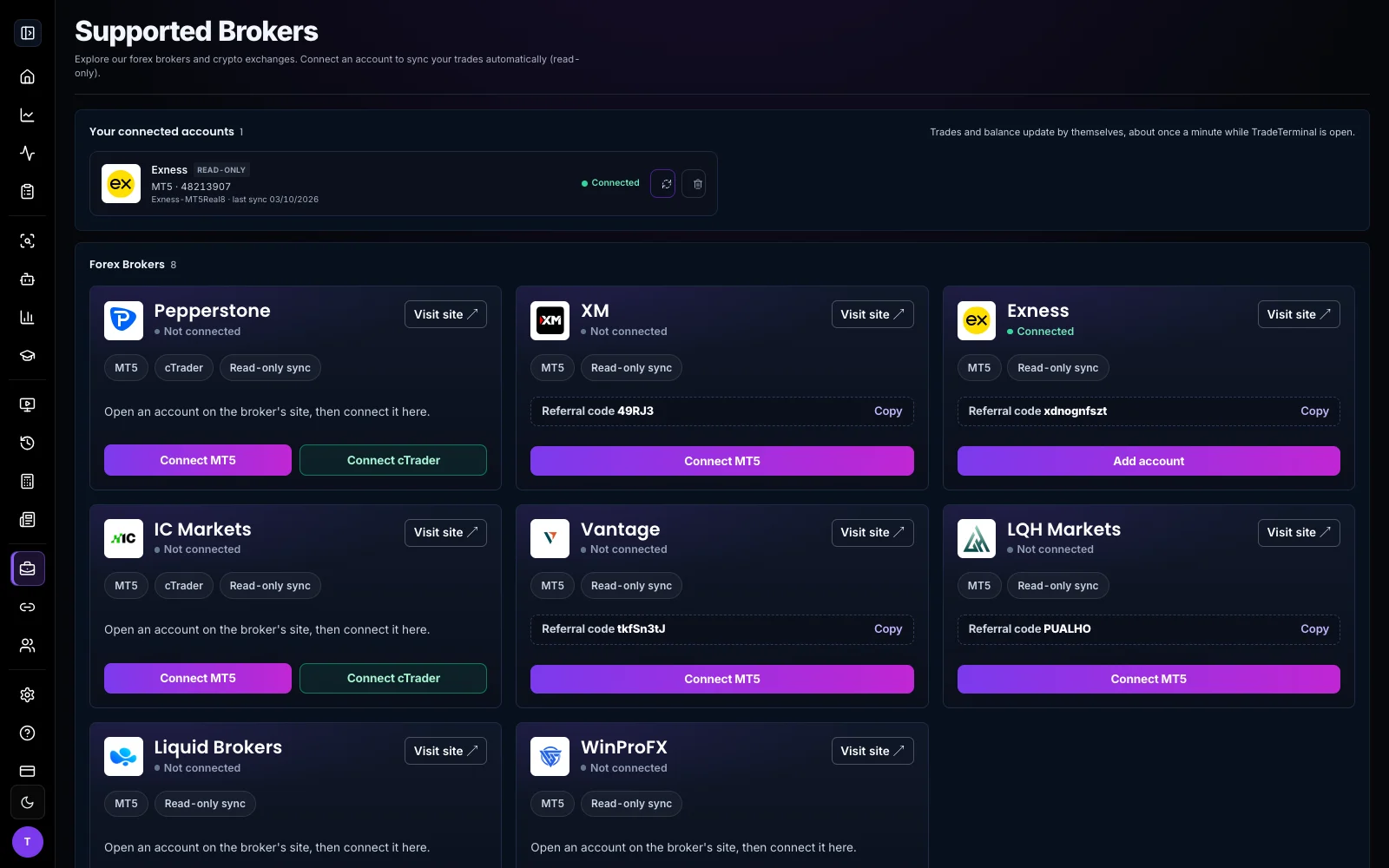
Connecting your broker is what turns TradeTerminal from an empty page into your own journal. TradeTerminal reads your closed trades and balance and never places a trade by itself. If you connect an MT5 account with its trading password, you can also trade it yourself from the Web Terminal.
Before you start
TradeTerminal is free during early access for traders whose broker or exchange account was opened through a TradeTerminal partner link. From next week the plan is $45 per month. After you sign up, you choose your broker or exchange and enter your account ID (UID) so it can be checked.
Connect an MT5 account
- Open Supported Brokers in TradeTerminal.
- Find your broker and press Connect MT5.
- Enter your MT5 login, the server name, and your MT5 password. With the trading password you can also trade from the Web Terminal. With the investor password the connection is read-only.
- Wait for the first sync. It reads your trade history, so it can take a few minutes.
Picture guides for each broker
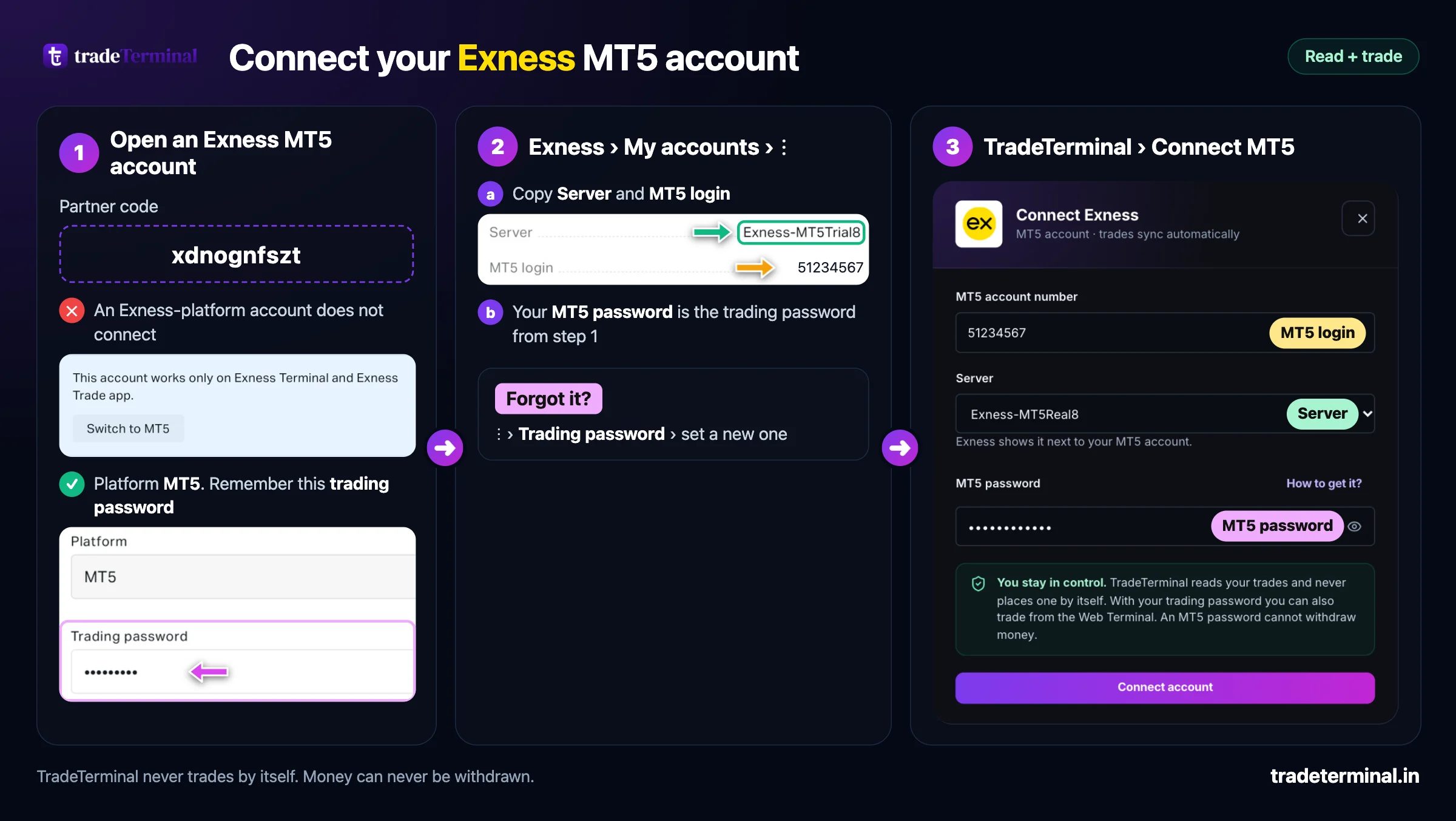
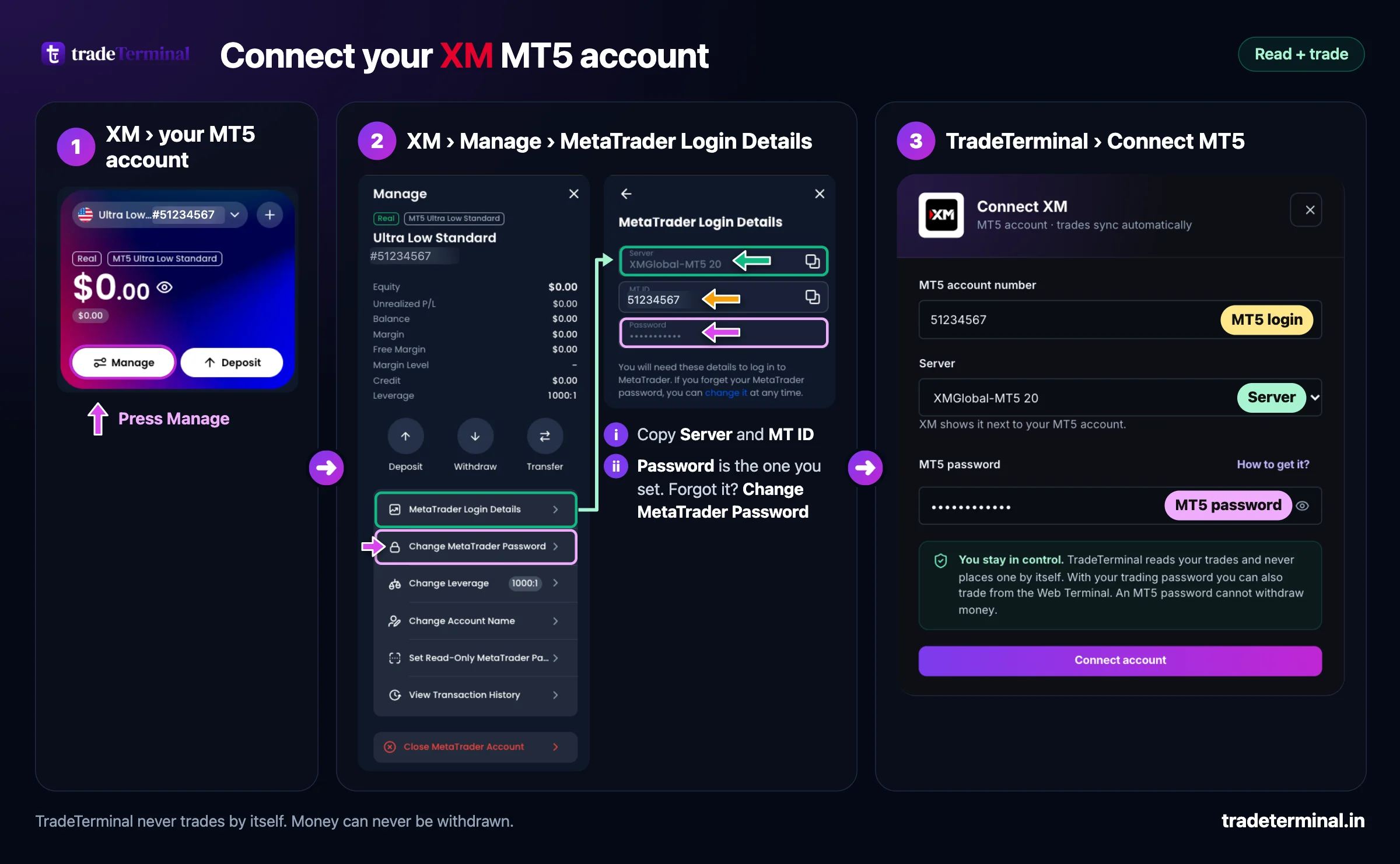
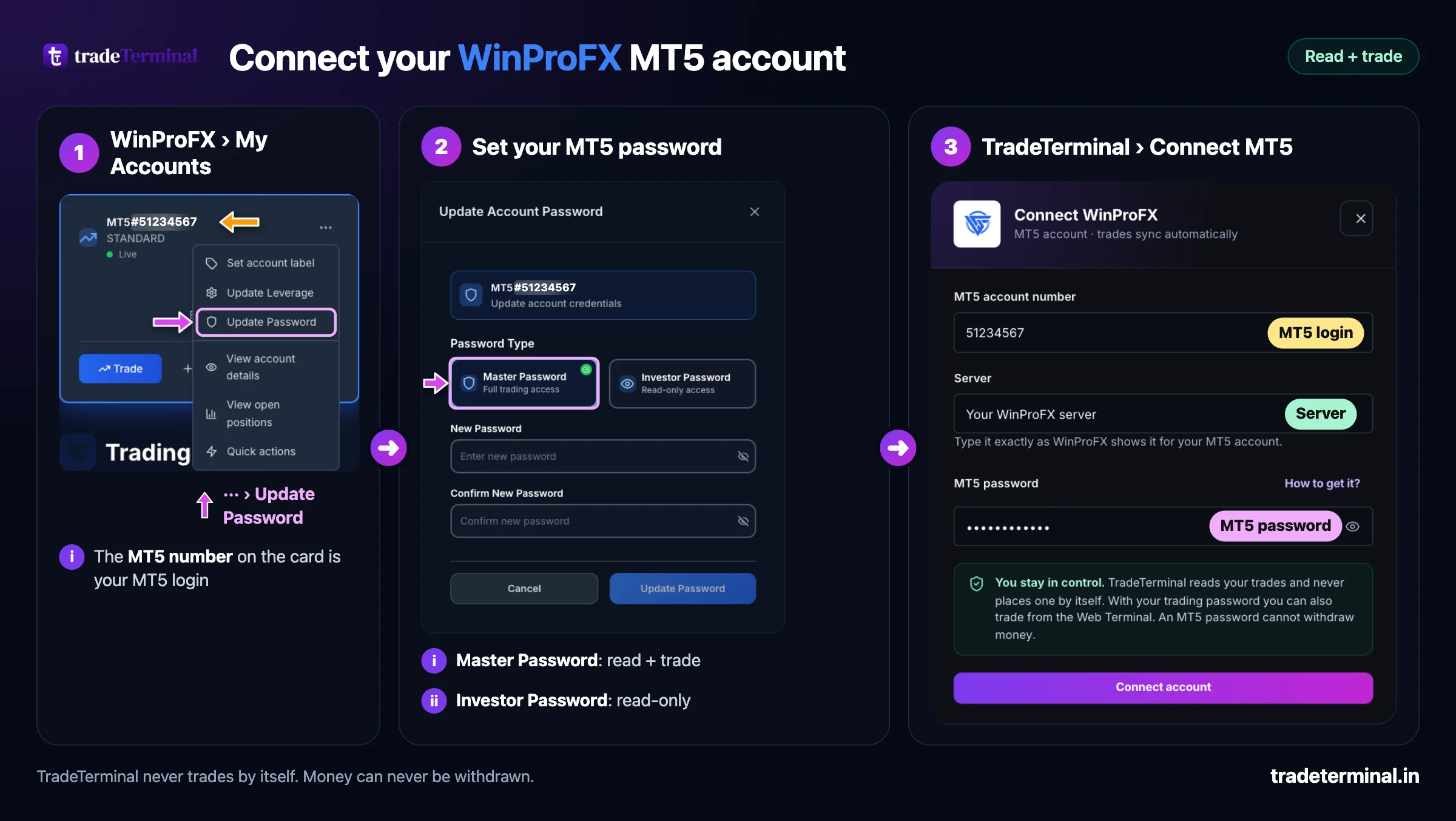
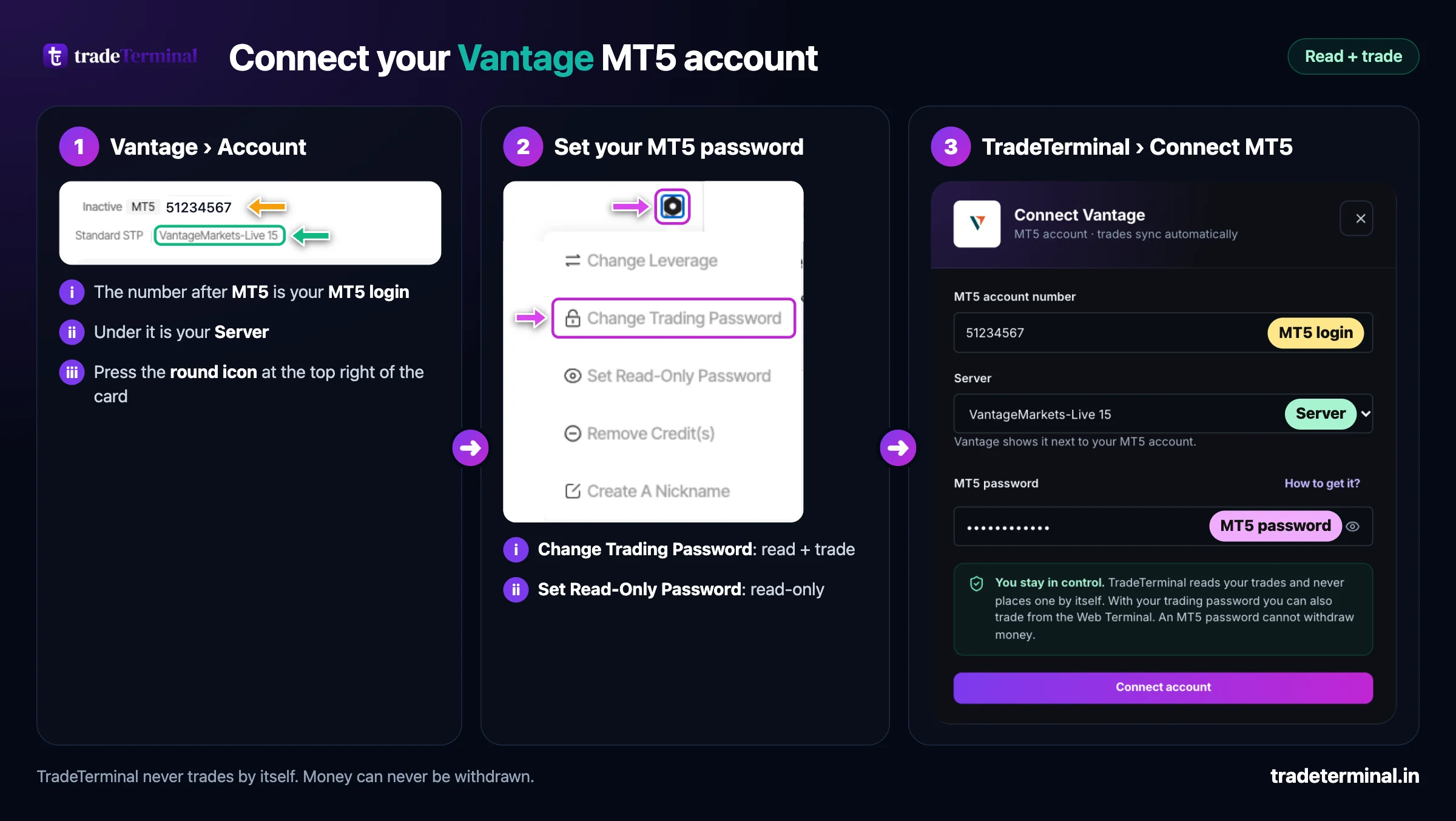
Each picture shows the broker's own screens: where to find the MT5 login, the server and the password, and where they go in TradeTerminal. The account number in the pictures (51234567) is a sample.
Exness
XM
WinProFX
Vantage
Staying safe
- If you only want your trades shown, connect with the investor password: it cannot be used to trade.
- Never share an OTP, a recovery phrase or an API secret with anyone.
- You can remove a connection at any time from Supported Brokers.