How to Connect Your XM MT5 Account to TradeTerminal
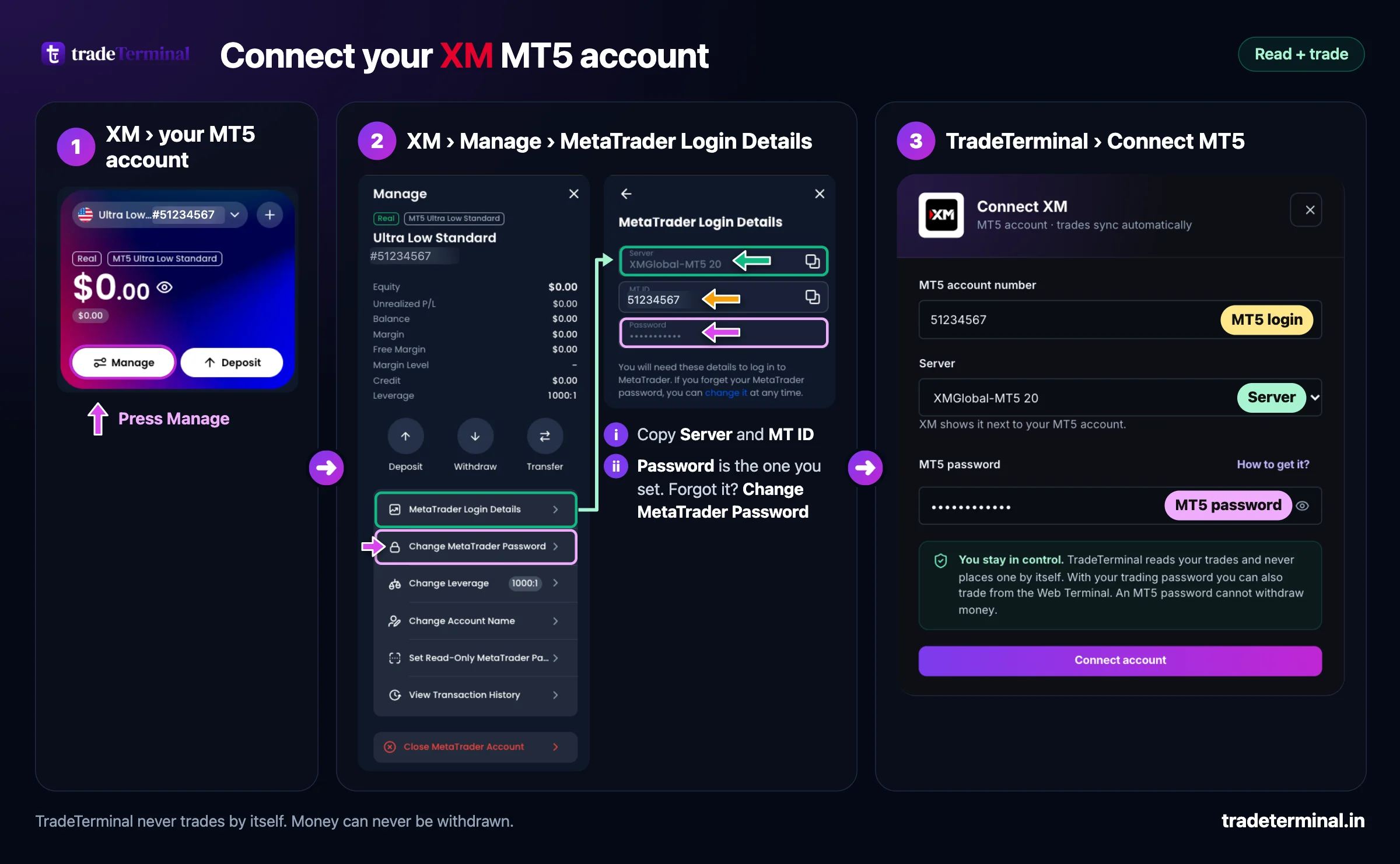
Connecting your XM account takes about five minutes. You need three details from XM: the MT5 login, the server and the MT5 password. You do not need to open the MT5 app.
Step 1: find your three details in XM
First, sign in to XM and press Manage on your MT5 account.
- Open MetaTrader Login Details. It shows the Server and the MT ID (your MT5 login).
- Your MT5 password is the MetaTrader password you set for this account.
- Forgot it? In the same Manage menu choose Change MetaTrader Password.
- To keep the connection read-only, choose Set Read-Only MetaTrader Password and use that password instead.
The account must be an MT5 account. An MT4 account cannot be connected.
Step 2: connect it in TradeTerminal
- In TradeTerminal open Supported Brokers. On a phone, tap More, then Supported Brokers.
- On the XM card press Connect MT5.
- Enter your XM account UID when TradeTerminal asks for it. It is checked once for each new account, usually within about 10 minutes.
- Type the MT5 login, choose or type the server, and type the MT5 password.
- Press Connect account.
When the account shows Connected, press Sync to bring in your trades. An MT5 account can be synced twice a day.
What TradeTerminal can do with the password
- TradeTerminal reads your trades and balance and never places a trade by itself.
- With your trading password you can also place and close trades yourself from the Web Terminal.
- With the read-only (investor) password the connection can only read.
- An MT5 password cannot withdraw money.
If it does not connect
- "Login or MT5 password is wrong": check the login and server letter by letter, set a new password in XM and try again.
- Your server is not in the list: choose "My server is not listed" and type it exactly as XM shows it.
- UID not approved: the account must be opened with the TradeTerminal partner link for XM.
The account number in the picture (51234567) is a sample.