
How to Connect Your WinProFX MT5 Account to TradeTerminal
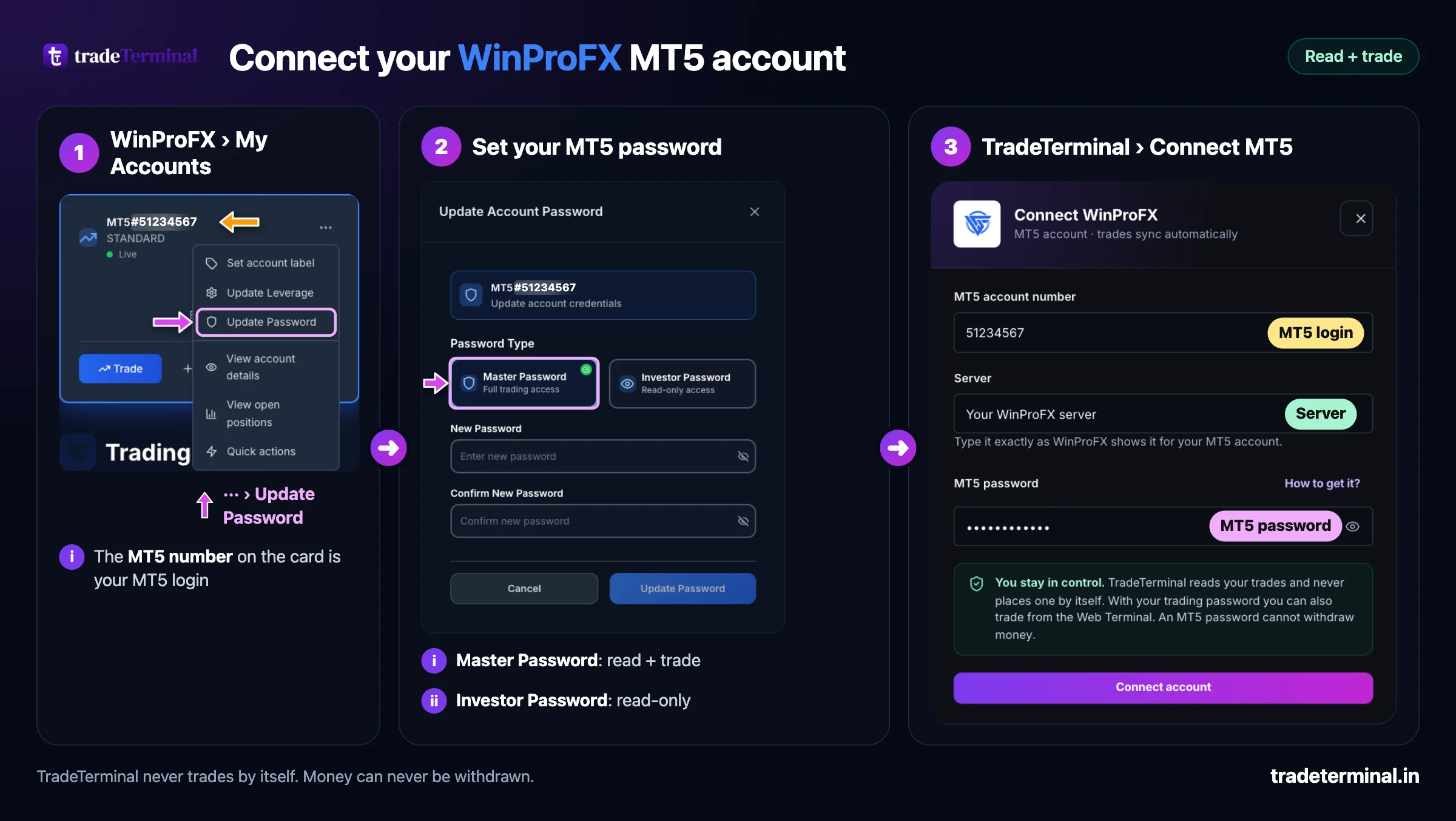
Connecting your WinProFX account takes about five minutes. You need three details from WinProFX: the MT5 login, the server and the MT5 password. You do not need to open the MT5 app.
Step 1: find your three details in WinProFX
First, sign in to the WinProFX client portal and open My Accounts.
- The number after MT5 on your account card is your MT5 login.
- Press the three dots on the card and choose Update Password.
- Choose Master Password to read and trade, or Investor Password for a read-only connection, and set it.
- The Server is the MT5 server name WinProFX gave you for this account. In TradeTerminal choose "My server is not listed" and type it exactly.
The account must be an MT5 account.
Step 2: connect it in TradeTerminal
- In TradeTerminal open Supported Brokers. On a phone, tap More, then Supported Brokers.
- On the WinProFX card press Connect MT5.
- Enter your WinProFX account UID when TradeTerminal asks for it. It is checked once for each new account, usually within about 10 minutes.
- Type the MT5 login, choose or type the server, and type the MT5 password.
- Press Connect account.
When the account shows Connected, press Sync to bring in your trades. An MT5 account can be synced twice a day.
What TradeTerminal can do with the password
- TradeTerminal reads your trades and balance and never places a trade by itself.
- With your trading password you can also place and close trades yourself from the Web Terminal.
- With the read-only (investor) password the connection can only read.
- An MT5 password cannot withdraw money.
If it does not connect
- "Login or MT5 password is wrong": check the login and server letter by letter, set a new password in WinProFX and try again.
- Your server is not in the list: choose "My server is not listed" and type it exactly as WinProFX shows it.
- UID not approved: the account must be opened with the TradeTerminal partner link for WinProFX.
The account number in the picture (51234567) is a sample.